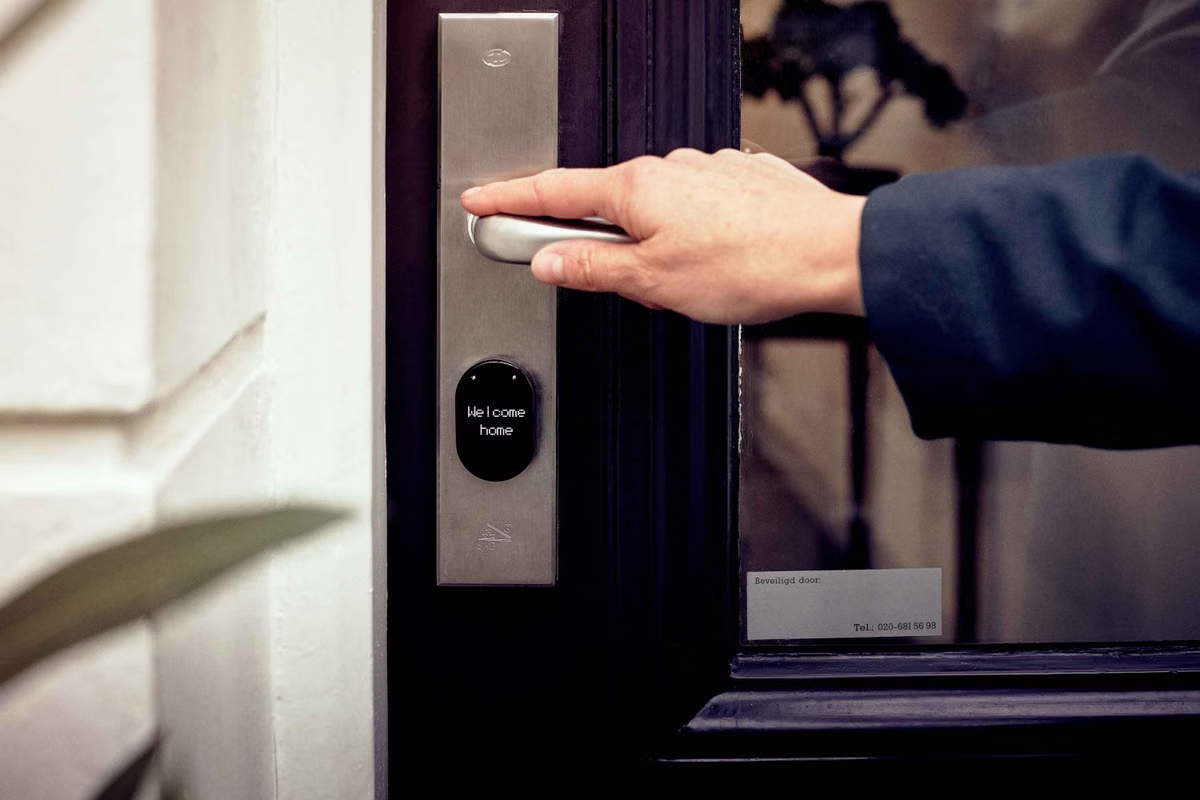
A Matter lock pairs, but your team still doesn't know whether users will get the same controls in both apps.
Choose the first test platform by your target users and the lock's declared functions, then verify each platform's current support documentation and the exact device behavior. A Matter label does not guarantee matching features or user experience in Apple Home and Google Home.
This guide is for product owners deciding where to launch, QA leads planning acceptance tests, and integration engineers checking cross-ecosystem limits.
How should you choose between Apple Home and Google Home for Matter smart locks?
Start with the user and the job the lock must perform. Do not pick a platform because it is more familiar to the team, or because a product page says “Matter compatible.” That label indicates use of a standard; it does not confirm that every feature is available through every ecosystem's app.
Make the decision in this order:
- Identify the intended users. Look at the platforms your customers already use and the markets you plan to serve. If you have no reliable audience evidence yet, keep the decision provisional instead of treating an internal preference as customer demand.
- Write down required lock functions. Separate essential actions, such as locking and unlocking, from features that may be optional for launch. Define what “status confirmed” means: an app display, a device response, or both.
- Check the platform's documented device support. Compare Apple and Google documentation with the specific lock maker's support and setup instructions. Use the maker's model-specific documentation, not a general statement about a product family.
- Check what your team can actually test. Include access to the physical lock, compatible phones and platform accounts, required home hubs or controllers, and a way to reset and re-add the device.
- Choose a priority, not an assumption. If one platform fits your first users and all must-have functions are documented, test it first. If both are launch targets, plan separate acceptance for both.
Matter specifications define device behavior, including device types and their capabilities; they do not make two platform apps identical. The Connectivity Standards Alliance Matter device library specification is useful for understanding the standard's device model. For product acceptance, pair that standards reference with each platform's documentation and the lock maker's feature declaration.
Your launch decision should be based on the required user task working on the actual lock, not on the Matter label alone.
What Apple Home documentation tells your team to verify
For Apple Home Matter support, check the current Apple guidance for compatible accessory types and setup requirements before ordering test devices or promising a workflow. Apple's Matter accessory support page describes its support and requirements; its iPhone guide to setting up a Matter accessory provides setup instructions. Requirements can change as platform software changes, so record the document and software versions used for your test.
Do not stop after finding a lock in the maker's supported-device list. Build a feature comparison for the exact model:
- Which lock actions does the maker say are supported through Matter?
- Does the maker document a lock-state report, and what event should update it?
- Does setup require a particular account, controller, hub, or network condition?
- Which functions are available only through the maker's own app or another connection method?
- How does the maker instruct users to recover from an incomplete pairing or remove the lock?
Then test the setup on the Apple Home environment you intend to support. Capture the app's pairing result and the lock's behavior separately. A successful setup screen is evidence of commissioning, not proof that every required control and status report works.
If a paired accessory appears unresponsive, use Apple's Home accessory troubleshooting guidance to inform your recovery checks. Record which recovery step you used. Otherwise, a test report can mistake a network or controller issue for a lock firmware defect—or the reverse.
A useful scenario: your product team targets households that already use Apple Home, and the lock maker documents Matter setup but says little about remote status. Make Apple Home the first platform only if it matches the target audience, then treat remote status as an explicit test requirement. If the lock's documentation does not establish the needed behavior, mark it unverified until the physical test confirms it.
What Google Home documentation adds to a Matter lock test
For Google Home Matter support, check both the supported device-type documentation and the control descriptions. Google's supported Matter device types and controls gives your team a platform-specific reference. Compare that list with the lock manufacturer's claims; neither source alone establishes that every advertised lock feature will appear in the Google Home app.
During testing, record the path through the app, not just whether setup eventually succeeds. Note the screen or action used to add the device, the controls shown after pairing, and how the app presents the lock's status. Also record what happens when you remove and add the same device again. This makes setup friction and recovery behavior visible to product and support teams.
Use Google's Matter device removal and factory reset instructions to plan removal and recovery checks. Follow the instructions appropriate to the device and platform rather than assuming that deleting an accessory from an app also resets the physical lock. Your test record should say which platform action you took and whether a separate reset on the lock was required.
The difference between platform support and device capability matters here. A platform may support the Matter device type while a particular lock exposes a narrower set of functions, or while a feature is not represented as your team expects in the app. Verify the exact user task: for example, whether a user can issue a lock command and then see the resulting state reflected in the platform they use.
What cross-platform QA should prove before launch
Use the same physical unit, firmware, network conditions, and acceptance criteria in both ecosystems wherever possible. This helps your team identify platform-specific outcomes instead of comparing unrelated test setups. If you cannot keep an input consistent, record the difference rather than presenting the results as a controlled comparison.
The Matter core specification provides standards context for device behavior and multi-admin mechanisms. A standards mechanism that permits more than one ecosystem to participate does not guarantee that the two apps offer matching setup flows or controls. Test each user journey on its own.
Use this sequence for a repeatable evaluation:
- Freeze the test subject. Record the lock model, firmware version, setup instructions, phone software, platform app versions, and any required controller or home hub. These are test identifiers, not evidence that another software combination will behave the same way.
- Define pass criteria before pairing. List required functions such as initial setup, lock and unlock commands, state display, and recovery. Specify what evidence counts for each criterion: app observation, physical lock response, or both.
- Run a clean setup in the first ecosystem. Follow its documented process from a known device state. Record prompts, permissions, errors, and any required steps outside the platform app.
- Exercise core controls and status. Issue each required command, observe the physical lock, and compare the result with the platform's displayed state. Repeat the test after an action made directly on the lock.
- Test remote access only when it is in scope. Confirm the platform's documented requirements first. Test away from the local network and distinguish a control failure from a stale or delayed status display.
- Remove and recover. Use the relevant platform and manufacturer instructions to remove the accessory, reset it if required, and add it again. Record whether the next setup succeeds without relying on an undocumented workaround.
- Repeat independently in the second ecosystem. Do not infer Google Home results from Apple Home results, or vice versa. Keep the device and acceptance criteria consistent, then document platform-specific steps and outcomes.
- Classify every result. Mark each criterion as passed, limited, or unverified. A function that was not tested is not a pass; a function that works only through a separate app is not the same as a platform-native control.
For teams that need a stable place to run companion-app or integration work, review the Kvmjet infrastructure overview as a separate part of test planning. A remote Mac can support development and software-side checks; it cannot replace the physical lock, its required controller, or an in-home radio and network test.
Frequently asked questions
Can one Matter lock be added to both platforms?
Potentially, if the lock and both ecosystems support the required multi-admin workflow. Your team should test the device's actual setup sequence in each app and check whether adding it to the second ecosystem requires a separate action or permission. Do not describe a lock as available in both homes simply because it paired successfully with the first one.
Are Apple Home and Google Home Matter lock features identical?
No such equivalence should be assumed. Standards support and platform presentation are different questions. Compare each platform's supported device information with the lock maker's declared features, then test the actual controls and status updates in both apps. Record any feature that appears in one ecosystem but not the other as a platform-specific limitation, not as a universal Matter result.
How do you confirm lock status and remote control?
First verify local commands and status reporting. Then check the platform's documented remote-access requirements and repeat the relevant test away from the local network. Observe the physical lock and app state independently. If a command succeeds but the status does not refresh, record that as a status-reporting issue rather than calling the full remote workflow successful.
Which platform should a development team test first?
Prioritize the platform that matches your intended users and supports the lock's required functions in current documentation. If documentation leaves a launch-critical capability unclear, schedule a physical test before committing. When Apple Home and Google Home are both product targets, test and sign off each separately; one successful integration is not evidence of equivalent behavior in the other.
Use these decision branches to set platform priority
Apply the branches to the team's actual product target. If two branches apply, the broader launch commitment takes precedence over the convenience of testing only one ecosystem.
- If one platform clearly matches your intended users and documents the lock type and must-have workflow, test that platform first. Expand to the other when it is part of your launch audience.
- If the user split is not yet known but one platform is the only one with documented support for a required function, verify that function on a physical device before making it your launch baseline. Keep the other platform's status as unverified, not unsupported.
- If both platforms are target environments, plan independent setup, control, status, and recovery acceptance for each. Do not use Multi-Admin as a substitute for two platform test reports.
- If neither platform's documentation or the lock maker's statement establishes a required behavior, pause the compatibility claim and test with the vendor's supported configuration. If the behavior still cannot be verified, report the limitation rather than infer support.
- If the team lacks a physical lock or required home setup, do software-side preparation if useful, but do not label platform acceptance complete. Obtain the hardware and environment needed for the remaining checks.
Compare the evidence, not the ecosystem labels
The tables below help teams separate what is known from what still needs a device test. Fill in the model-specific cells from current platform and manufacturer documentation; do not treat these general comparison points as a promise for every Matter lock.
| Decision area | Apple Home review | Google Home review | Evidence to retain |
|---|---|---|---|
| Device-type support | Check Apple's current Matter accessory support information | Check Google's supported Matter types and controls | Dated copy or reference to each official document |
| Setup | Follow Apple's iPhone and Home setup guidance | Follow Google's Matter setup flow | Setup steps, prompts, errors, and final result |
| Required features | Compare the lock maker's claims with what the platform exposes | Compare the same claims with Google Home's documented controls | Feature-by-feature result on the physical lock |
| Remote access | Confirm Apple's current controller and access requirements | Confirm Google's current controller and access requirements | Network conditions and observed control and status |
| Recovery | Follow Apple and lock-maker recovery instructions | Follow Google and lock-maker removal/reset instructions | Removal, reset, and re-add outcome |
A practical report should distinguish three outcomes:
| Result label | Use it when | Example report wording |
|---|---|---|
| Passed | The required workflow was tested and met its acceptance criteria | “Lock command and resulting state both matched the defined test on this model and firmware.” |
| Limited | The workflow worked with a documented restriction or a missing required sub-feature | “Basic control passed; the required status display did not meet the team's criterion.” |
| Unverified | The team lacks evidence, the test was not run, or the result is inconclusive | “Remote control was not tested under the intended off-network conditions.” |
Use one row per required function and platform. That makes it harder for a broad “Matter supported” statement to conceal a missing test. Keep the lock maker's declared functions separate from observed results: a declaration describes intended capability, while your QA record describes what your team verified.
| Team situation | First action | Launch implication |
|---|---|---|
| Single-platform audience with a documented core workflow | Test that platform end to end | A focused first release may be reasonable after physical acceptance |
| Both ecosystems are launch targets | Test each ecosystem independently | Require separate acceptance evidence before claiming cross-platform readiness |
| A required function is unclear in platform or vendor documentation | Ask the maker for model-specific clarification, then test | Keep the compatibility claim provisional until evidence exists |
| Hardware or required home setup is unavailable | Prepare test cases and software-side integration work | Do not mark physical-device acceptance complete |
Plan the test environment without confusing it with device validation
A Mac-based development environment may help your engineers build companion software, inspect logs, or coordinate test tooling. It does not prove that a Matter lock can be commissioned or controlled in a real home setup. Your test plan still needs the intended phone, lock, platform account, network, and any required hub or controller.
If you need temporary Mac capacity for development or software-side validation, Kvmjet's Mac node options can be considered alongside local hardware and other test resources. This is most appropriate when your team needs a temporary environment rather than a permanent workstation. If your project needs continuous physical access to the lock, dedicated home equipment, or stable long-running test cycles, owning or maintaining a local test rig may be the better choice.
Before buying or booking a test environment, use the Kvmjet help center to check service details separately from your Matter acceptance requirements. Keep the hardware decision distinct from the platform decision: a Mac can support parts of the engineering workflow, but it cannot substitute for validating Apple Home, Google Home, and the actual lock under the conditions your customers will use.
Your next step is to check the current official device-support pages for the platform you intend to prioritize, then run the same acceptance criteria against the physical lock. If both ecosystems matter to your launch, require two evidence-based sign-offs; if only one is in scope, document the other as not tested rather than implying equal support.
Test Your Matter Smart Lock App on a Remote Mac
Run your macOS companion app and integration checks on dedicated Mac mini hardware from Kvmjet.
Use VNC or SSH to access a full macOS environment for remote debugging and QA.