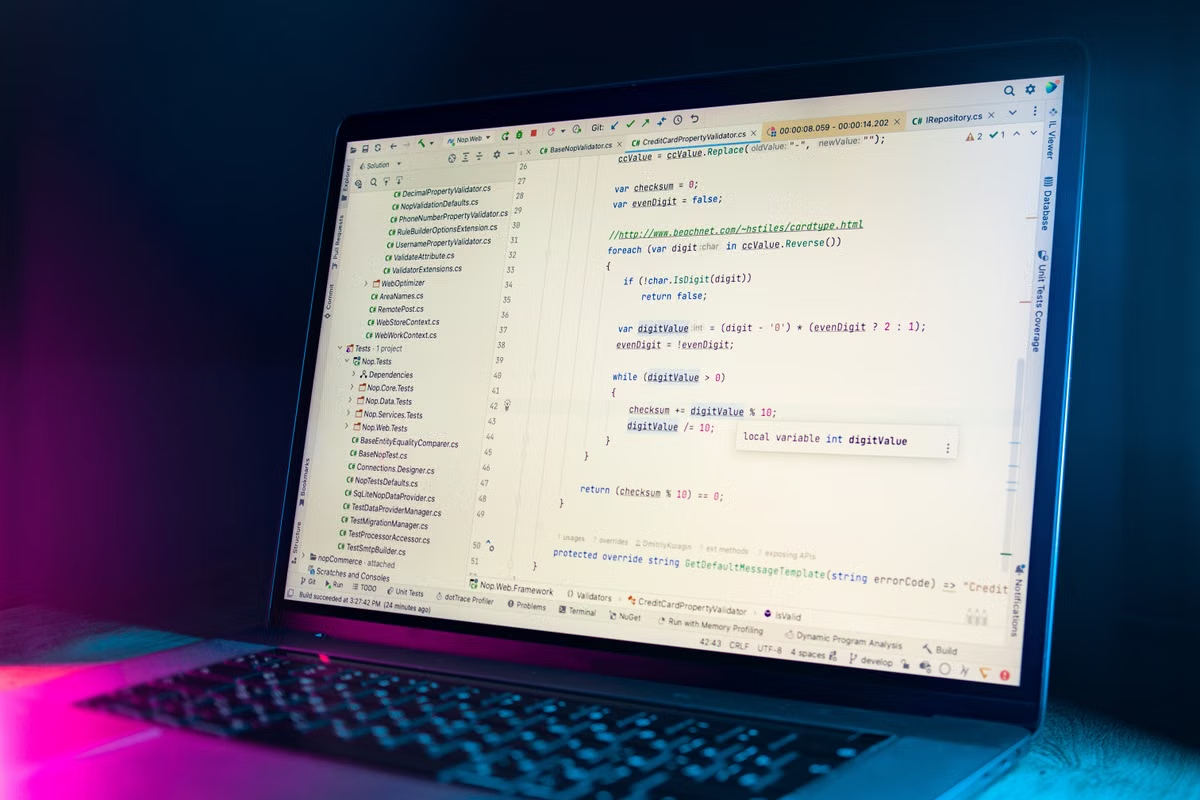
Your editor still feels faster for line-by-line coding, but your team keeps losing time moving between issues, branches, terminals, and pull requests.
The fastest answer: do not replace Cursor automatically. Keep Cursor for editor-heavy work, choose GitHub Copilot App for GitHub-centered agent workflows, and use a short dual-track trial before making a team-wide decision.
This article is for you if you are evaluating a Cursor alternative, deciding whether to move from Cursor, or planning an agent-based workflow for a technical team. It also helps platform owners who need to provide isolated workspaces, remote build capacity, or macOS environments for AI agents.
Last updated July 28, 2026. Product availability, preview labels, pricing, and billing details were checked against the official GitHub and Cursor documentation on this date.
The decision in one view
The GitHub Copilot App is a desktop application designed around parallel agent sessions, GitHub Issues, branches, pull requests, and CI checks. It supports macOS, Windows, and Linux, and is available across Copilot plans. Cloud sandboxes and BYOK model connections are still marked as public preview, so they should not be treated as the only foundation for a production workflow. GitHub’s official Copilot App overview explains the current scope.
Cursor remains the safer choice when your main activity is editing code inside a familiar editor. Its current product direction also includes background agents, worktrees, multi-root workspaces, and asynchronous multitasking. That means the gap is no longer “editor versus agent.” The real comparison is which control surface matches your delivery process. Cursor’s background agent documentation describes its remote agent workflow.
Quick judgment: stay with Cursor if fast interactive editing is the bottleneck; move toward GitHub Copilot App if issue-to-PR execution is the bottleneck; run both if your team has both problems.
Editing experience
Inline work and human takeover
The first mistake in this comparison is treating GitHub Copilot App as a traditional IDE. It is not primarily an editor replacement. Its value is the agent session: you select a repository or local folder, choose a workspace, define the task, and direct the agent through a workflow that can end in a pull request.
That changes the daily experience for developers who spend most of their time writing code manually. If you are fixing a small function, testing a hypothesis across several files, or repeatedly accepting and rejecting inline suggestions, an editor-first product still has an important advantage: the code, navigation, diff, and terminal are close to your hands.
Cursor is therefore the better fit when you need:
- Fast inline completion while typing.
- Immediate edits across the files already open in your workspace.
- Frequent manual steering after every small change.
- Local debugging with direct access to your running application.
- A single editor surface for code, chat, diffs, and terminal commands.
GitHub Copilot App is stronger when the task can be expressed as a work item rather than a sequence of keystrokes. For example, “implement the authentication issue, add tests, run the project checks, and prepare a pull request” maps naturally to its workflow. The app can start from an Issue, create a branch, modify code, run tests, and keep the review process inside the same application. GitHub’s agent session documentation confirms that sessions can run in a local repository, a worktree, or a cloud sandbox.
Which tool is better for daily coding? If “daily coding” means typing and reviewing small changes continuously, Cursor is usually the lower-friction choice. If it means assigning well-scoped units of work and reviewing the result, GitHub Copilot App is more compelling.
Code navigation and context
Both tools can operate across multiple files, but their context model feels different.
Cursor starts from the editor workspace. You bring the repository into the tool, inspect files, ask for changes, and decide when the work is ready to move back into the normal Git process. Its multi-root workspace support is useful when a task spans a frontend, backend, and shared library. Cursor’s multitasking documentation describes its worktree and cross-repository workflow.
GitHub Copilot App starts closer to the delivery object. That object may be an Issue, branch, pull request, or repository-level task. This reduces the need to copy context between GitHub pages, an editor, and a terminal. It also gives you explicit session modes: Interactive, Plan, and Autopilot. The difference matters because a team can define when an agent should ask for approval and when it can proceed independently.
The hidden cost is setup discipline. An agent workflow only works well when repository instructions, test commands, branch rules, secrets handling, and acceptance criteria are clear. Switching clients without improving those inputs may only move the confusion to a different window.
Agent execution
Parallel workspaces and branches
GitHub Copilot App makes parallel work a first-class concept. Each session can have its own isolated worktree and branch. You can assign one task to a feature branch, another to a bug fix, and a third to documentation without forcing them into one shared working directory. The app also supports cloud sandboxes, but that execution mode is currently public preview. GitHub’s Copilot App documentation describes the available session and workspace options.
Cursor also supports background agents in isolated environments. Its documentation describes agents that can edit and run code remotely, clone a repository from GitHub, work on a separate branch, and push changes back for handoff. Cursor’s later multitasking update adds asynchronous subagents, worktrees, and multi-root workspaces.
The practical difference is not whether both products can run more than one task. They can. The difference is where you supervise the work:
- GitHub Copilot App puts supervision around Issues, sessions, branches, pull requests, and CI.
- Cursor puts supervision around the editor, agent window, worktrees, and local takeover.
- Both require you to review diffs and test results rather than trusting an autonomous run.
- Neither removes the need for a stable repository setup and predictable build commands.
Operational reminder: parallel agents multiply branch and environment management. Before enabling several sessions, confirm that each task has a separate branch, a reproducible test command, and a clear rule for handling shared files.
Local, remote, and preview execution
This is where migration decisions become more complicated.
GitHub Copilot App can run sessions in a new local worktree, in a local repository, or in a GitHub-hosted cloud sandbox. The cloud sandbox is isolated and can preserve session state between machines, but its preview status means your organization should validate access controls, network requirements, package installation, and data handling before depending on it for critical work.
Cursor background agents run in isolated Ubuntu-based remote machines by default, with internet access and package installation support. That is useful for many web and backend projects. It is not the same as a macOS build environment. If your workflow needs Xcode, Apple platform signing, macOS-only tooling, or a long-running local simulator, a generic Linux sandbox will not solve the actual infrastructure problem.
For Apple platform work, the correct question is not “Which client has the better agent?” It is “Where will the repository build, test, sign, and remain available while the agent works?” A stable remote Mac can matter more than changing from one AI IDE to another.
You can review Kvmjet’s Mac infrastructure overview when the limitation is local hardware, build continuity, or access to a persistent remote environment rather than the client interface itself.
GitHub delivery loop
Issue-to-PR distance
GitHub Copilot App has a structural advantage when GitHub is the system of record. Its official workflow lets you browse Issues, start an agent session, create a branch, implement changes, review the result, open a pull request, inspect CI checks, and continue iterating from the same application.
That can remove several context switches:
- Copying an Issue description into an agent prompt.
- Finding the correct branch manually.
- Opening a separate pull request page.
- Checking whether CI finished.
- Returning to the agent with failure logs.
The advantage is smaller when your repositories are not centered on GitHub. GitHub Copilot App’s native integration is most valuable when Issues, pull requests, permissions, and CI already live there. If your organization uses another code host or keeps much of its planning outside GitHub, you may still need external tools and manual handoffs.
Cursor can still fit a GitHub-centered team, especially when developers want to work inside the editor and use background agents for asynchronous tasks. Its background agents can clone from GitHub and push to separate branches, but the primary supervision surface remains the Cursor workflow rather than a complete GitHub delivery console.
Can GitHub Copilot App fully replace an AI IDE? Not for every developer. It can replace part of the agent and project-management workflow, but it does not automatically replace the value of an editor optimized for continuous manual coding.
Review and governance
For teams, native integration also creates governance benefits. GitHub policies can control which Copilot features, agents, and models users can access. Administrators can manage agent availability and monitor agent sessions through enterprise controls. GitHub’s policy documentation describes the relevant administrative controls.
Cursor also provides team administration, centralized billing, usage analytics, privacy controls, and enterprise controls according to its current pricing page. However, you should compare the specific controls you need: repository restrictions, model access, SSO, audit records, network permissions, and automated execution rules are not interchangeable features. Cursor’s current pricing and plan page lists its team and enterprise controls.
Cost and data control
Subscription versus usage
Do not compare only the visible monthly subscription. Agent-heavy usage can introduce a second cost layer.
For GitHub organization plans, the current official billing page lists Copilot Business at $19 per user per month with 1,900 AI credits per user, and Copilot Enterprise at $39 per user per month with 3,900 AI credits per user. GitHub states that one AI credit equals $0.01, and usage beyond included credits can be billed separately. Code completions and next-edit suggestions are not billed in AI credits for paid plans. GitHub’s organization billing documentation provides these figures.
Cursor’s current pricing page lists $20 per month for its individual Pro plan and $40 per user per month for its Teams plan. Cursor also states that agent usage can depend on model usage and that cloud agents, Bugbot, and other services may involve usage-based billing. Cursor’s pricing documentation should be used for the final purchase check because model rates and included usage can change.
The buying implication is straightforward:
- Choose the product whose cost model matches how you work.
- Track agent usage separately from editor completion usage.
- Set spending limits before allowing background or autonomous execution.
- Recheck pricing immediately before procurement.
- Do not assume a lower subscription means a lower total cost.
Privacy and permissions
A background agent needs more authority than an inline completion. It may clone a repository, install dependencies, run shell commands, access the network, and push a branch. That creates risks around secrets, prompt injection, malicious dependencies, and unintended data transfer.
GitHub’s enterprise policy controls can restrict features, models, agents, and client surfaces. BYOK support in GitHub Copilot App is currently public preview, and GitHub requires you to authenticate with a GitHub account even when using your own model provider. The official BYOK documentation describes the current setup and preview status.
Cursor’s background agent documentation states that code runs in isolated virtual machines, agents can access the internet, and automatic command execution creates data-exfiltration risks. It also explains that privacy settings affect how prompts and development environments are handled.
For a team, approval should therefore cover more than the license. Confirm:
- Which repositories agents may access.
- Whether agents can push branches automatically.
- Whether network access is required.
- How secrets are injected or blocked.
- Which models are approved.
- How usage and agent activity are audited.
- Whether preview features are allowed in production work.
You can use the Kvmjet Help Center when the remaining issue is remote access, environment preparation, or operational support rather than product selection.
Migration questions
Is moving from Cursor to GitHub Copilot App worth it? It is worth testing when your work is already organized around Issues, pull requests, CI checks, and parallel tasks. It is less compelling when your main pain is slow editing, weak local navigation, or frequent manual debugging. A migration should follow a workflow improvement, not a product announcement.
Can a team use GitHub Copilot App and Cursor at the same time? Yes. A dual-track setup is reasonable when developers use Cursor for interactive editing while selected tasks run through GitHub Copilot App. The team should standardize repository instructions, branch naming, test commands, and review rules so the two tools do not create conflicting practices.
Does GitHub Copilot App replace Cursor for Apple development? Not automatically. GitHub Copilot App may coordinate the work, but you still need a macOS environment for macOS-specific builds, signing, and testing. If the local Mac cannot sustain several builds or agent sessions, infrastructure should be fixed before the client is replaced.
Decision table
| Workflow condition | Better default | Reason | Migration stance |
|---|---|---|---|
| Frequent inline coding and immediate edits | Cursor | The editor remains the main control surface | Keep Cursor |
| Issue-to-branch-to-PR delivery | GitHub Copilot App | Native GitHub workflow reduces handoffs | Test migration |
| Several independent tasks at once | Either, with different strengths | Both support isolated agent work; supervision differs | Run a controlled trial |
| Repositories outside GitHub | Cursor may be simpler | GitHub-native benefits are reduced | Keep current workflow first |
| Xcode or macOS-only builds | Neither client solves it alone | You need a reliable Mac execution environment | Fix infrastructure first |
| Enterprise policy and GitHub governance | GitHub Copilot App | Central GitHub controls align with the workflow | Evaluate for team rollout |
| Heavy use of preview cloud or BYOK features | Neither should be assumed production-ready | Preview behavior and policies can change | Pilot only |
Trial plan and acceptance criteria
Do not migrate the entire team after a single successful prompt. Use one real repository and one short evaluation cycle.
- Select a repository with normal test coverage, realistic dependencies, and a non-critical Issue.
- Define the same task for Cursor and GitHub Copilot App. Use identical acceptance criteria.
- Record whether each tool creates the correct branch and changes only the intended files.
- Run the same tests and build commands in both workflows.
- Measure review effort by counting rework categories: incorrect scope, broken tests, style violations, missing documentation, and unsafe commands.
- Test one parallel-task scenario with separate workspaces or branches.
- Check the complete delivery loop from Issue to pull request and CI result.
- Review usage, permissions, data handling, and any extra environment cost.
- Ask developers which workflow caused fewer interruptions, not which demo looked more impressive.
- Keep the existing tool unless the new workflow wins on the bottleneck that actually affects delivery.
Use these acceptance questions:
- Did the agent understand the repository instructions without repeated prompting?
- Could a reviewer trace every change back to the Issue?
- Did parallel sessions remain isolated?
- Could the project build in the required environment?
- Were failures easy to reproduce?
- Did the team stay within its usage budget?
- Could administrators enforce the required model and permission rules?
Final recommendation
If you are an individual developer who spends most of the day editing code, keep Cursor until GitHub Copilot App proves that its agent workflow saves more effort than the editor change costs.
If your team works from GitHub Issues and pull requests, GitHub Copilot App deserves a serious pilot because it shortens the path from assigned work to reviewed code. It is not a universal AI IDE replacement, and its cloud sandbox and BYOK capabilities are still preview features.
If you need both fast manual coding and parallel GitHub delivery, dual-track use is the most defensible 2026 decision. It avoids forcing every developer into the same workflow while giving the team evidence before procurement.
The current client is only part of the equation. Local hardware can limit concurrent builds, remote agents may lack macOS capabilities, and unstable sessions can erase the benefit of a better interface. Renting a persistent Mac environment through Kvmjet can be the better next step when your real problem is continuous builds, Xcode access, or multi-agent testing rather than the choice between two clients. Review the available remote Mac node options after your dual-track trial identifies the required environment.
Run Your AI Coding Workflow on a Dedicated Mac
Choose a dedicated M4 Mac node from Kvmjet for coding, testing, and agent-assisted development.
Access your remote Mac through VNC and keep your development environment available from anywhere.